1:1, Collaboration, Google, iOS, Kuwait

My foray into Elementary

One of the first official things we’ve been asked to do as Technology Coaches is to go into every classroom in the elementary (Pre-K through grade 5) and do a short introductory iPad lesson. We met with the Primary Years Programme coordinators and the Elementary iPad Advisory Group (made up of 7 teachers) to create and refine our ideas for our lessons. It was decided that the most important concept before the students received their iPads was how to treat it (where it should/shouldn’t go, how they should/shouldn’t hold it).

To get started, we created a sign-up sheet for the teachers in Google Docs. We then sent them an email with the link telling them a little about what we wanted to do and asking them to fill in their information.

As a team, the three of us decided to split the grades so that our lessons would be able to be tailored for the target age group. After my two gentlemanly colleagues had chosen, I was left with 3rd grade and half of 2nd. I was a little hesitant and nervous at first as I’ve never worked with students younger than grade 9!

I emailed my elementary counselor friend for some advice, gave my creative juices some time to flow…and voila I had an idea! Using the pictures and cartoons that the guys took and drew, I wrote a short picture book for the students. I based my story off of Are You My Mother? by P.D. Eastman. Here is my book (written using a Google Presentation)…

My first class this morning was a 2nd grade classroom. I started by introducing myself to the students and told them that I work with Mr. Jeff and Mr. Smith. I also explained how we would be coming into their classrooms sometimes to work with their teachers and that they would see us around the school. Before starting the story, I had them read the title and make predictions about what the story was going to be about. While I was reading the story to them, we talked about what made the iPad sad and happy. We talked about how the iPad wouldn’t like the canteen because she doesn’t like food, wouldn’t like the bathroom because she doesn’t like water and how she doesn’t like being up too high or down low. The story ended up being more interactive than I thought it would be…for each picture the students tried to find the iPad and it become like a “Where’s Waldo?” game.  It was fun and they really seemed to get into the story 🙂

I then asked them for their help. I told them how I knew a little boy who needed their help deciding how to treat his iPad. For each drawing (thanks bunches to Matt!!), they raised their hand if they thought it was a good way or a bad way to treat the iPad. Before showing them the “answer,” I had a couple students share about why they thought it was good or bad. We talked about why it would make the iPad happy or sad and I reiterated to them that I would be sharing their advice with the little boy. Before letting them switch to question mode, the teacher and I steered them towards giving me advice about what should be put in the iPad (only charger, headphones & case), what shouldn’t be put with the iPad in their backpack (no food/drink) and how the iPad should always stay in the keyboard case (unless a teacher tells them differently).

When I took out my iPad to demonstrate some of the things that might make the iPad happy or sad, they were in awe (they literally cooed when I took it out of my bag!). They loved seeing it and were excited to be able to get their own soon. I then let them ask me questions. I quickly saw that there were going to be WAY too many questions in the time we had (the whole lesson lasted about 30 minutes), so I asked them to talk with their table groups in order to come up with 1 question. This was great because they had to work together to pick a question and then also to pick who would ask it.

Overall the lesson went way better than expected! The students were adorable, asked great questions and had great advice! It was so different to be in a lower elementary classroom (as opposed to high school) where the students are eager to share and thirsty for knowledge. They really seemed to connect with the characters in the story…let’s just hope they remember when they get their iPads! This afternoon I’ll be working with a 3rd grade class. Who knew elementary could be so much fun? 😉
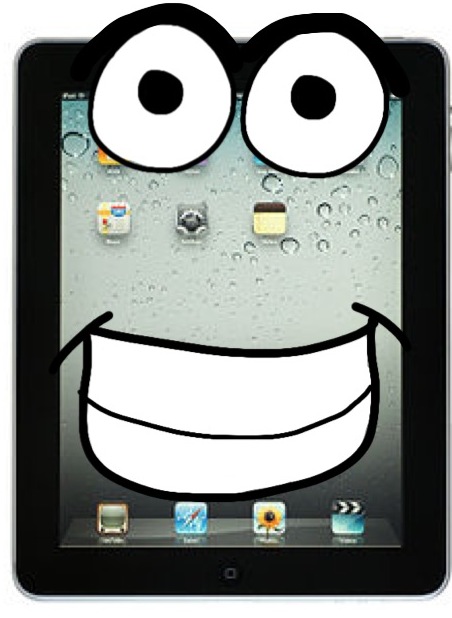
All the credit goes to Matt for this cartoon!

Update: Today I walked into a 3rd grade classroom and was told they didn’t have a projector…uh crap?! Luckily I created my book as a Google presentation and have the Google Drive app on my iPad. I had the students gather on the carpet and read them the story on my iPad 🙂 It worked really well…maybe even better than when it’s on a big screen!

Update #2: I had my first experience with KG1 students today! Going from high school to elementary was a big jump, but going from 2nd & 3rd graders to 3 & 4 year olds was almost as big. They are SO tiny! The class I was in was sitting “criss-cross applesauce” on the carpet. Each student had a piece of tape with his/her name on it and they had to keep their bums on the tape. They don’t have projectors in the KG1 classrooms, so I used the iPad as a book strategy. I also cut down on the examples of how to hold the iPad after the story. I brought the keyboard case (sans iPad) and let each child stand up to practice “hugging” it. They all clapped for each other and it was adorable! Some other adjustments I made – we skipped the predicting about the story and the giving advice part. I did allow them to ask questions, but they didn’t really know how to so they told me some stories instead. Incredibly cute…but no way could I teach little ones all day! 🙂
Chromebooks, Collaboration, Google, Professional Development

Gatorade, Google, Sweat & Social Media #scms12

Day 1 is officially over! Although we didn’t win the Chromebook at the end of the day, it was a decent day. During the keynote by Jaime Casap I found myself nodding along with almost everything he said. To see what people were saying during Jaime’s keynote (and throughout the day), click here.

My session was immediately after the morning keynote. During my 2 years of coaching high school Track & Field, I initiated using social media and google apps with the other coaches, the athletes and the parents. I had a lot of great success! These ideas could also be used for any school group (magnet programs, clubs, after-school programs, etc). I included several links this morning, including one to the ‘fake’ team website. Below is my presentation…enjoy!


My husband also did a session about classroom management in a 1:1 environment. I heard it was a must-attend! #proudwife

Chromebooks, Collaboration, Google, Professional Development

South Carolina Midlands Summit #scms12

Good morning!

Today and tomorrow mark our last 2 days working with our school district before heading out. We will be attending (and presenting at) the SC Midlands Summit. I’m incredibly excited that we have such a great opportunity right in our own backyard! I know a lot of work went into putting this conference together and I’m incredibly proud to have worked with the women who orchestrated it (MaryAnn, Donna, & Pam).

Later I’ll be posting my presentation:
Gatorade, Google, Sweat and Social Media
Ever feel like coaching is taking over your life? In this session you’ll learn strategies to utilize Twitter, Facebook & Google Docs to save time, become more effective communicators and better coaches, regardless of the sport.

But for now…check out what you’re missing and follow along!
#scms12
Featured Speakers
Wednesday Sessions
Poster Sessions
Thursday Sessions

1 Two 1, Chromebooks, Google

Super Quick Tip – #Chromebooks

My senior grades are due tomorrow so I’m rushing to get everything done since I’m a professional procrastinator 🙂

BUT we’ve been using our Chromebooks in class a lot and I’ve been using a classroom management technique from my instructional technology specialist. It’s a no-brainer and when I heard about it I said…duh! But I wanted to share anyways!

We’ve been watching Imparfait (imperfect) tutorials made by the students with our class set of iPods. I have students grab their Chromebook, open the google form that I emailed them and close their Chromebooks. When their Chromebooks are closed, we watch a video. After the short tutorial, they open their books back up (takes seconds!!) and fill out the survey. And we do it all over again.

The classroom management key to so many of my lesson plans lately has been the opening and closing of the Chromebook lid. I know for a fact that students aren’t doing anything they shouldn’t be doing. And they can signal to me when they are ready to move on. This strategy might also work with laptops but the speed of the Chromebooks is phenomenal for it.

1 Two 1, Chromebooks, Google

How I used #Chromebooks in the classroom today

In my next life I’ll be better at planning my lessons ahead of time (also at blogging regularly). I’ve found that in my teaching life I think on my feet way better than I think in advance. Today was a perfect example!

I was planning on having my French 2 year long class rewrite a present tense story using the imperfect tense (imparfait). Then we’d put the new verbs on the board and talk about what was happening in the story. I was also planning on introducing how/when to use imparfait in a new way & show some videos from my previous classes.

HOWEVER, as my students were working on their bellwork, I realized how long it was taking them and how difficult it was proving to be for them.

Text of story…
C’est une nuit de décembre. Il fait froid. Il neige. Nous sommes deux dans la voiture – ma sœur Lucienne et moi. Mais la voiture ne marche pas. Nous n’avons plus d’essence (gas). Au bord de la route, il y a une vielle femme. Elle a les cheveux blancs et son cou est très long. Elle promène un chien et elle chante très fort. Ma sœur et moi la trouvons un peu bizarre.]

On the spot I made a google form (while they were finishing).

I had students grab their Chromebooks. First I needed them to download a new Chrome extension that my ITS found. It’s genius for math or world language teachers! (I took this picture after I wrote the directions for my block classes – I do this often…write something on the whiteboard, snap a picture with my iPod touch and use it later or share it with students!).

I then had students check their email (I almost always email forms to students so that it shows up right in their email instead of giving them the link…saves steps and is much easier to explain!). As you can see in the form above, I broke the paragraph down into sentences so they could more easily find the 12 verbs to conjugate. I also chose to automatically collect students’ email addresses so that they would receive their responses. (Note: I realized today that students have no idea how to find verbs in sentences. My English teacher next-door neighbor assured me this is the case in English too!)

After all the students submitted their answers, I downloaded the Flubaroo script, ran it and graded the assignment (see website for tutorial & video…super easy!). I opted to have Flubaroo send the students their grades. Tonight’s homework is to use their responses & and their grade to correct their answers.

Tomorrow in class I will share the results of the form with students so that everyone can see on their personal Chromebook (I created gmail groups for each class so that it is easy to share & email gdocs). This is what students will see…

Obviously I don’t want students to see who submitted the responses. So I have hidden the columns with student info (right click on column heading, select ‘hide column’). I also hid the Flubaroo spreadsheet. I didn’t want to delete this information because I still need it! Tomorrow I want students to quickly be able to see which answers are completely correct, which ones would have received partial credit (had this been a formal assessment) and which ones were completely wrong. In order to do this, I used conditional formatting to identify the correct answers in pink. I did have to go through by hand and change the almost correct answers to blue. Anything in black is wrong. Depressing huh?

It wasn’t until today that I realized the power of having students use google forms to submit responses and then share the spreadsheet with them so that they could see others’ responses and we could talk about them. I’m excited for the possibilities!

1 Two 1, Chromebooks, Collaboration, Google, Social Media

#RVKony Day 2 w/ @Invisible Roadies @ICDeepSouth #KONY2012

Whew! Day 1 was a great success (in my humble opinion)! My students stayed on task and made some great comments on their articles. They loved being able to annotate a document at the same time and thought it was the coolest thing that they could see what their partner was doing to the document in real time. One of my biggest challenges for Day 2 was finding an online platform for my students to discuss what they read and #Kony2012. This proved to be quite difficult! Chatzy is blocked with no hope of becoming unblocked. I didn’t want anything complicated that students had to “learn” (left out edmodo, Campfire, etc.). I also needed something that identified them and that I could moderate (left out TodaysMeet, etc). One of the ITS at another high school in my district suggested Google Groups. Since we are a Google Apps for Education district, I took this idea and ran with it!

1. When students walked into the classroom on Friday I had these instructions on the board…

2. Students in the outside circle had these directions waiting in their email…

3. In addition, if students in the outside circle expressed an interest (on their survey) of tweeting, they also had these instructions…

4. Students on the inside circle discussed the Kony 2012 video, Invisible Children, the articles they read and their thoughts & opinions on those issues out loud. I moderated this discussion if needed (although one of my classes did so well I barely said a word :)).

5. Students on the outside circle weren’t allowed to say anything out loud…they expressed all of their opinions on the discussion board and Twitter while listening to the inside circle. I embedded both the discussion board and the #RVKony TweetChat into a google site, however the students were having trouble viewing them. That’s when I added the link at the bottom of the page so that students could go independently to the google group.

6. While all students were discussing in both circles (out loud and online), I had the TweetChat on the board so all students could see what was being said on Twitter.

The day went incredibly well and I was extremely proud of my students! One discussion got quite heated while another one went so smoothly I barely had to say a word. A couple highlights from the day..
*my 3d period only participated in the online discussion because we were watching the Kony 2012 video in the gym with the Invisible Children Roadies (Deep South team).
*we were lucky enough to have Laura (from IC) come spend time with my 5th period class. She sat in the inner circle and joined the discussion. It was an amazing asset to have her there with us! (and she was impressed by how well read the students were!) In the future, it would be great to have a Roadie with each class, if possible.
*a couple other teachers/classes in the school participated in the online discussion. I tried to get the word out (sent an email about FREE lesson plans!) but it didn’t catch on quite as well as I would have liked. But this project could definitely become a larger school project with time.
*one of my students chose to come back to my class for the last period of the day and help us tweet out what students were saying (on discussion board and in class). He struggles in French, however something about this issue connected with him. He was planning on skipping and going home, however I convinced him to come to my class and help out with Twitter.

I encouraged my students to create their own opinions from the information. I didn’t care if they agreed or disagreed with Invisible Children & Kony 2012, I just wanted them to have an educated reason for what they thought. If you want more information, here are some of the resources I gathered.

This week was one of those weeks were I love being a teacher. Educating students about current events, encouraging them to think and create their own opinions, getting them involved in a REAL discussion and seeing how much they care…priceless. 🙂

1 Two 1, Chromebooks, Collaboration, Google, Social Media

#KONY2012 is coming to us! #RVKony

Today is a day I love being a teacher! I’m so excited and have so many ideas in my head right now I just need to get them out there. Hopefully this will also help get people involved so that these ideas turn into something real for my students and everyone involved! Update: Thanks to everyone who has read my ramblings! I have a pretty good plan laid out now…check below!

This Friday (only 2 days away!) is the last day before Spring Break and the 5th annual visit from Invisible Children. I first learned about IC when the “Roadies” came during my 1st year teaching (spring 2010). This encounter inspired my husband and I to donate on a monthly basis to the Legacy Scholarship Fund. I’ve kept up with IC but our donation is directly debited and I don’t have to “do” a whole lot. When I watched the Kony 2012 video that has created so much controversy throughout the last month, my passion was reignited. I want to help my students get educated, care about something and DO something about it. This Friday, I know my students hearts and brains aren’t going to be into learning French (Spring Break!!!), so I want to get them educated about what’s going on in the world and help them form opinions concerning a real-world topic (whether they agree with me or not). Here’s my plan:

*Thursday I will be pairing up my students (update: here is the survey I gave them today). I will then be giving each pair an article to read and discuss (links to come). The articles will range from very positive to very negative to neutral to purely informational (on my way to finding & sharing lots of info). Since I’m teaching in a 1:1 classroom, I want the students to be able to collaborate together online (and not print off hundreds of articles). Update: Right now I’m planning on either using google docs (document for each article, share w/ students, they collaborate) or crocodoc. Still playing around! I am still figuring out exactly how to have my students do this in part while using our Chromebooks. Ideas welcome!!!

*On Friday most of my classes will be “discussing” what they’ve read. Each pair will be split up into two groups. One group will be the inside circle and will be discussing their opinions out loud. I want to allow them to share what they read/learned and the opinions they formed but I also want to have guiding questions in case the discussion stalls. The second group will be the outside circle. These students will be using Chromebooks to converse through a back channel. Because Twitter is not reliable at my school (https is blocked), I am experimenting with different websites. Right now I’m probably going to be using a premium room on Chatzy.com (update: no I won’t! It is blocked at our school and won’t be unblocked). I love the simplicity & look of TodaysMeet, but don’t want my students to have so much freedom and anonymity. I don’t want them to have to learn a whole new platform, it needs to be simple and fast! I will be moderating both the spoken and online discussion. Any other ideas for discussion rooms that can be moderated? Update: Adobe Connect doesn’t work with Chromebooks. Tweetchat is blocked too. Campfire is currently looking like the best alternative but I’m not the biggest fan. Even newer update: Thanks to some wonderful people in my district, I created a google group. This group has a discussion board (not a chat room). Students will be able to create topics and reply to each other. I then created a google site (only viewable if logged into the district domain) and embedded the discussion group. Right now I’m working on finding a way to embed the Twitter discussion into the site (#RVKony). Things I’ve tried – direct from Twitter, Hootsuite, FeedBurner.

*ONE of the things I’m really excited about is my 3rd period. The IC Roadies will be with us the entire period so we won’t have time for the normal discussion. However, my class has been given permission to bring our Chromebooks to the presentation. Which means they’ll be able to have a live online discussion while they are watching the Kony 2012 video for the first time (!!!!).

*Where I get even more excited is all the possibilities!! Here are just a couple of things I’ve thought of…
-other classes in the school can join our back channel chat room and discuss the issue in real time…even though they are in different classrooms (now if I can just get some other teachers on board. Update: I have at least 1 other teacher who is willing to try and sent an email to our entire staff.).
-while each class is discussing (aloud and online), I’d like to designate a couple students to use their phones to tweet out using #RVKony. This way what is happening in our classroom will also be a discussion with other people around the world. However I need a way for my students to see the Twitter discussion without using Twitter. Any ideas for how to search & view hashtags (w/out Twitter)? Update: Thanks to a friend on Facebook… hashtags.org and tweetchat.com (tweetchat is blocked for our school, hashtags is not). Newer update: Still figuring out how to embed into my google site (hosted by my district). See above for details.
-I want to get the word out NOW, not after the fact. I want my students to participate in a discussion with their peers and people around the world (#RVKony). I want them to realize that the world is bigger than them, bigger than our school, bigger than our city. Please share with anyone and everyone! The more people that participate in the #RVKony discussion on Friday (9am-3:30pm), the more meaningful it becomes.

These are my rough ideas and I don’t have much time to throw it all together. But it’s not the morning of and I’m confident that everything will come together!

1 Two 1, Google

Being absent in a 1:1 classroom

The week after our full day of professional development, I was out for 2 days. It seems like I’ve been out a lot lately 😦 (2 days for international job fair, 1 day for PD, these 2 days…). Usually it seems nothing productive gets done when I’m not physically in the classroom, especially because the students are supposed to be learning French. I usually have them do independent work, partner work, speaking exercises and watch movies. [Luckily my content tends quite well to movies! My students really enjoyed Asterix & Obelix and we were able to have some great discussion about White Material during Black History Month.This time I decided to experiment with having my students use the Chromebooks while I was gone.

Students’ homework was to bring their headphones to class with them. I also explained to each class that they would be using the Chromebooks and I would be giving them more responsibility than I’d ever given other groups of students. I told them to make me proud and that I looked forward to bragging about them when I came back. I stayed completely positive and emphasized how much responsibility they were going to be given.

I was fortunate enough to be able to speak with the sub the day before I was absent. This made me feel so much better since I was leaving her with so much responsibility! Here is an excerpt from the letter I left my sub…

Students will be using Chromebooks today and tomorrow. Ms. Smith will come open the Chromebook cart. I have written the number they will be using on the roster next to their names (in yellow). I have also noted if they have turned in their user agreement (in orange). Please collect (and record) any missing agreements and encourage them to turn them in ASAP (there are extra copies). Each student will have a task list/assignment sheet in his/her email. The two allowed sites are their google mail/docs & my.hrw.com (I have printed out their usernames & passwords in case they forgot). They should ask you if they need to go to any other sites.

Class Agenda:
1. Get Chromebooks. Log in to their email. Open the file I’ve shared with them (assignment sheet). Do as much work as possible.
2. Put Chromebooks away correctly (do not plug in).
3. Please remind them to send me an email. They should tell me a) how much work they got done, b) how hard they worked and c) questions they have.

I made assignment documents for each of my classes (French 2 block & French 2 year long). About 30 minutes before their class period, I shared each document with them.

The biggest differences between being absent in the past and being absent this time were that I was able to see their work (in real time) and that I was able to communicate with them. At the end of the class period, students emailed me their progress. The evening of day 1, I read all the emails and emailed back any of my students who had questions. I LOVED how this worked and I am so excited to now be able to brag about my students! Our high school sometimes gets a bad rap but I always love to tell people how wonderful my students are. We have a great relationship (one of the most important classroom management strategies I’ve learned in 2.5 years) and they are (usually) wonderful 🙂

1 Two 1, Collaboration, Google, Professional Development

Let’s take a step back

So I’ve talked a lot about our district going 1:1 but I haven’t given many details. Implementing 1:1 in a district of 25,000 students and 30+ schools is a big undertaking! So here are some of the logistics…

*all schools are site-based. So the district office gives recommendations, but the schools (principals) have the final say. This applies to devices chosen, professional development, discipline policies, etc.

*K-2 will NOT be going 1:1, grades 3-8 will be going 1:1 by grade level and high school will be going by thirds

*Phase 1 (February 2012) – grades 5, 6 and 1/3 of each high school (based on student population, ~26 teachers at my school). Phase 2 (August 2012) – grades 4, 7 and next 1/3 of HS. Phase 3 (TBD 2013) – grades 3, 8 and last 1/3 of HS. At this point high schools MAY allow devices to go home instead of classroom sets.

*all high schools & elementaries chose Google Chromebooks, middle schools have chosen a variety of devices (iPad, Android tablet, Chromebooks)

*all high schools & elementaries have carts for 1:1 teachers with class sets, middle schools are doing homeroom models and also allowing students to take devices home

20120316-065849.jpg

20120316-070019.jpg

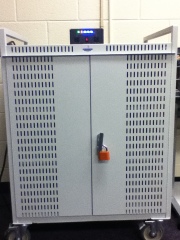
*Before we ever saw our Chromebooks, our Integration Technology Specialist (ITS) (Tami) had her work cut out for her! She received over 700 Chromebooks. Each one was assigned to a class set (district asset & serial numbers were recorded), set up to the network (we have a special Chrome wireless network), labeled and inserted into a cart.

20120316-071435.jpg

*Tami created (and shared) a google document with all of this information so that we (teachers) could assign Chromebooks to students (my students use the same CB every day). The original spreadsheet includes information for all teachers.

*Tami started holding professional development for the 1:1 teachers at my HS in late fall. We received our locked carts in nid-February. We were required to attend a full day of PD on March 1st to obtain the code to unlock our carts. Unfortunately we didn’t get to all of the following agenda (everything took much longer than anticipated!). I helped present the session on “Unlocking the Chromebook Power” using an adapted version of my SCLFTA presentation.

*The morning was spent determining which CB numbers (1-27 for my cart) matched the asset tag info that Tami collected (see above spreadsheeet). I exported rosters from my PowerSchool gradebook then copied and pasted my students names and ID numbers into a Google spreadsheet for each class. I then assigned each student to a number (alphabetical order) and converted their ID numbers to email addresses.

*This full day of PD was priceless because we were given useful information and the TIME to do things that we needed to do. I adapted my rules presentation (from Tami) and my user agreement.

*Among other information, we also viewed and discussed the discipline policy. As we go 1:1, I think it is extremely important to have consistent consequences and hold students accountable. Below is an example from another high school in our district.

Whew that was a mouthful! But implementing 1:1 on this scale (or anywhere) is such a huge undertaking 🙂

1 Two 1, Google

The first days of 1:1

On Friday, March 2, I rolled out Chromebooks in my classroom. I introduced them using this presentation (adapted from my Integration Technology Specialist – ITS):

And this video (which my students found both educational and funny 🙂 ):

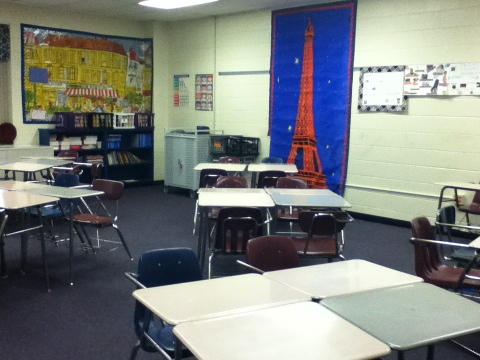
I rearranged my classroom into groups of desks.

20120319-075600.jpg

Before I made a seating chart, I got some input from the students.

We then spent Monday, Tuesday and Wednesday slowly integrating the Chromebooks into our classroom. Another idea that I stole (and adapted) from Tami (my ITS), was the idea of a Google Race. I shared this document with my students and set them to work.

You can adapt this idea for any content area! I was able to not only have my students practice with Google Docs but also the French concepts we’ve been learning. Sylvia Duckworth has created an updated version of this race. Check it out!

I’ll be back soon with info about what it was like being absent for the first time in a 1:1 classroom.